How to Flash Daughter Boards using Factory Port (Quick Steps)

This procedure describes how to flash daughter boards using a 635-CPU Board’s native Factory Test functions and FTS cable.
MATERIALS AND REQUIREMENTS
|
Materials 6 |
|
Requirements 6 |
|
|
|
|
|
|
|
|
|
|
|
|
|
|
|
|
|
|
PART 1 - CONNECT AND POWER-UP 635-CPU AND TARGET BOARDS
-
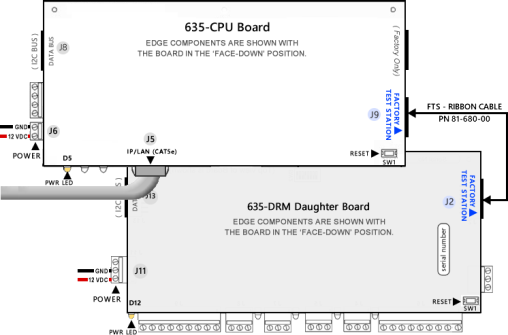
Power up the 635-CPU using a 12 Vdc power source.
-
Connect 635-CPU to a Laptop/PC using Cat5e cable
-
Open the native Panel Status page by typing the CPU’s IP Address into a Browser (default factory IP = 192.168.0.150).
-
Record the serial number of the target Daughter Board (you need this for a later step).
-
Power up the target Daughter Board using a 12 Vdc power source.
-
Connect the Factory FTS Cable from the CPU Factory Test port and the Daughter Board Factory Test port.
PART 2 - DISABLE ALL EVENT SERVERS (VIA THE PANEL WEB PAGE)
-
Click the Panel Configuration page, and uncheck all Event Servers (1 - 4). Click the Update button to save settings.
PART 3 - CONFIRM THE FLASH FILE VERSION
The New 635-CPU board ships with the ‘current flash’, the native Factory Test Station, and the embedded Flash.
-
Click the Factory Function page and verify if the Embedded Column’s flash version matches your Target Flash Version …
-
IF the Embedded Column matches your Target Flash Version, go to PART 5 - FLASHING THE DAUGHTER BOARD.
-
IF the Embedded Column does not match your Target Flash Version, go to PART 4 - UPLOADING THE TARGET S28 FLASH FILE .
-
PART 4 - UPLOADING THE TARGET S28 FLASH FILE
Once you flash the first board, you can flash the next board without having to reload the target flash file.
-
Go to the Factory Function page to begin the uploading process …
-
Click the Browse button and navigate to the appropriate Folder Path and select your target S28 file.
-
USB path X:\\Auxiliary\System Galaxy\FTS635\Factory Testing\S28\ your_model*\ your_board-type*\ Previous Version …\
-
PC path C:\\GCS\System Galaxy\FTS635\Factory Testing\S28\ your_model*\ your_board-type*\ Previous Version …\
-
|
Ý |
Take care to open the correct folders for your board-model (i.e. 600 or 635) and board-type (DRM/DPI, DIO, DSI). |
-
Select the correct S28 File that matches your Target Flash Version and click the Open button.
-
You must click the Upload button in the Factory Function page to load the S28 File to the FTS-CPU memory bank.
( Live upload results will display in the Activity Log section of the web page. ) -
Click OK button when the upload is completed. Your Target Flash Version will display in the Uploaded Column.
-
Go to PART 5 - FLASHING THE DAUGHTER BOARD.
|
M |
DO NOT RESET THE CPU BOARD. Doing so will delete the target flash file you just uploaded. |
PART 5 - FLASHING THE DAUGHTER BOARD
-
Click the Flash Version link that is shown beside the board type you want to flash - (i.e. 600 or 635 DRM/DPI, DIO, DSI, etc.).
-
When prompted, enter the 8-digit serial number of the target Daughter Board as shown in the example below:
NOTE: The Serial Number must be exactly 8 digits. The serial number is on the printed label that is affixed to the board. When typing the serial number, you must swap the first zero into the leading position – see examples below.
Examples of Serial Number Entry
|
Model |
6 IF BOARD LABEL SAYS THIS |
|
6 YOU WILL ENTER THIS INTO THE FTS SERIAL NUMBER PROMPT |
|||
|
635 DRM à |
“30012 …” |
|
“03012 …” |
ß notice how the first zero has been moved from the second position into the leading position. |
||
|
600 DPI à |
“20012 …” |
|
“02012 …” |
|||
|
|
|
|||||
|
M |
DO NOT DUPLICATE SERIAL NUMBERS. Boards will not function with duplicate Serial Numbers or Board_IDs |
|||||
-
Click the OK button to begin transferring flash to your target Daughter board.
The Activity Log displays progress indicators that show the board flash progress and flash verification progress.NOTE: If the Factory Test Station stops the flashing: make sure you clicked the correct Flash Version Link that is beside your board-type and board-model. The Factory Test Station will not transfer flash if the selected link is for a board that is different than the actual board you are attached to. Also, you can verify that you have uploaded the correct S28 Flash file. And that the FTS Ribbon cable is securely attached to the CPU and your Daughter Board
-
When the Activity Log displays “flashing is successful”, you will click the OK button.
-
Press the Reset button (SW1) on the Daughter Board after flashing is successful, to complete the process. Do not reset the CPU or you will have to reload your target flash file (that was loaded in Part 4).
-
Disconnect the Factory Test Cable from the finished Daughter Board.
See the System Installation QRS or 635 Hardware Installation Guide for instructions on installing the board, as needed. -
Connect the Factory FTS Cable to the NEXT Daughter Board at the Factory Test port.
-
To flash your next Daughter Board you will return to PART 5 - FLASHING THE DAUGHTER BOARD.